
In our increasingly digital world, merging scanned documents into one PDF online is a valuable skill that can simplify your life significantly. Whether you’re compiling important paperwork for a job application, organizing family records, or preparing for a presentation, knowing how to efficiently consolidate multiple files into a single document streamlines your workflow and reduces clutter. Many of us face the challenge of juggling various types of documents, often leading to frustration and confusion. This guide will walk you through simple, straightforward methods to merge your scanned files, making the process as stress-free as possible. With easy-to-follow steps and helpful tools at your disposal, you’ll be empowered to tackle paperwork with confidence. Let’s dive in and discover how to create a neatly organized PDF that meets your needs.
Choosing the Right Online PDF Merger Tool
Selecting an online PDF merger tool can transform the way you manage scanned documents, guiding you seamlessly through the process of consolidating multiple files into a single, accessible PDF. With so many options available, it’s vital to consider several factors to ensure that you choose the right tool suited to your needs.
First, consider the user interface and ease of use. A straightforward, intuitive interface can simplify the merging process, especially for those less familiar with digital tools. Look for platforms that offer drag-and-drop functionality, allowing you to easily upload your scanned documents. Additionally, responsive design that works well on both desktop and mobile devices can enhance your user experience, making the process convenient regardless of your location.
Next, evaluate the features that the merging tool offers. While basic functionality typically allows for merging PDFs, advanced tools may provide options like file compression, the ability to reorder pages, or even add annotations. For those focused on maintaining the quality of scanned documents, ensure that the tool does not excessively compress files or alter the clarity of images. Some popular tools such as iLovePDF and Smallpdf provide additional features like converting scanned documents to editable formats, which can be incredibly useful for further modifications.
Security is another crucial aspect when choosing an online PDF merger. Since you will be uploading potentially sensitive documents, look for tools that offer encryption and do not retain uploaded files beyond the merging process. Reading user reviews can provide insight into a service’s reliability and commitment to privacy. Finally, consider whether you are looking for a free service or are willing to invest in a paid tool that might offer more robust features or ad-free usage.
By carefully assessing these factors, you can select an online PDF merger tool that not only meets your immediate needs but also supports you in effectively managing your scanned documents over the long term.
Step-by-Step Guide to Merging Scanned Documents

Merging scanned documents into a single PDF can feel daunting, but with the right approach, it becomes a simple and manageable task. Whether you’re combining important documents for a job application or organizing family records, following a clear step-by-step process can make all the difference. Here’s how to seamlessly combine your scanned files into one cohesive PDF.
Start by selecting a reliable online PDF merger tool. Some popular options include iLovePDF and Smallpdf, which offer user-friendly interfaces and a variety of features for merging PDFs. Once you’ve chosen your tool, navigate to the merge function, typically found on the homepage or under a specific section for PDF manipulation.
Next, gather all the scanned documents you wish to merge. Ensure they are saved in a compatible format (like PDF, JPG, or PNG) on your device. Many tools allow you to simply drag and drop your files into the designated area, making it easy to upload multiple files at once. Confirm that your scanned documents are in the correct order before proceeding, as the order will dictate how they appear in the final PDF. If needed, some tools also offer options to rearrange files before the merging process.
After your files are uploaded, you may have options to adjust settings like orientation, file size, and compression. If preserving image quality is crucial, check that the tool maintains high resolution and clarity. Once you’re satisfied with your selections, click on the merge button. The tool will process your documents into one file, which can take just a few moments depending on the number of documents and their sizes.
Finally, you’ll have the option to download your merged PDF. It’s wise to review the final document to ensure all pages are correctly formatted and in order. From there, you can easily share it via email, upload it to cloud storage, or print it out as needed.
By following these steps, you can confidently merge your scanned documents into a single, organized PDF, streamlining your paperwork and reducing clutter. Remember, practice makes perfect-soon enough, you’ll be merging documents with ease!
How to Optimize Scanned Document Quality
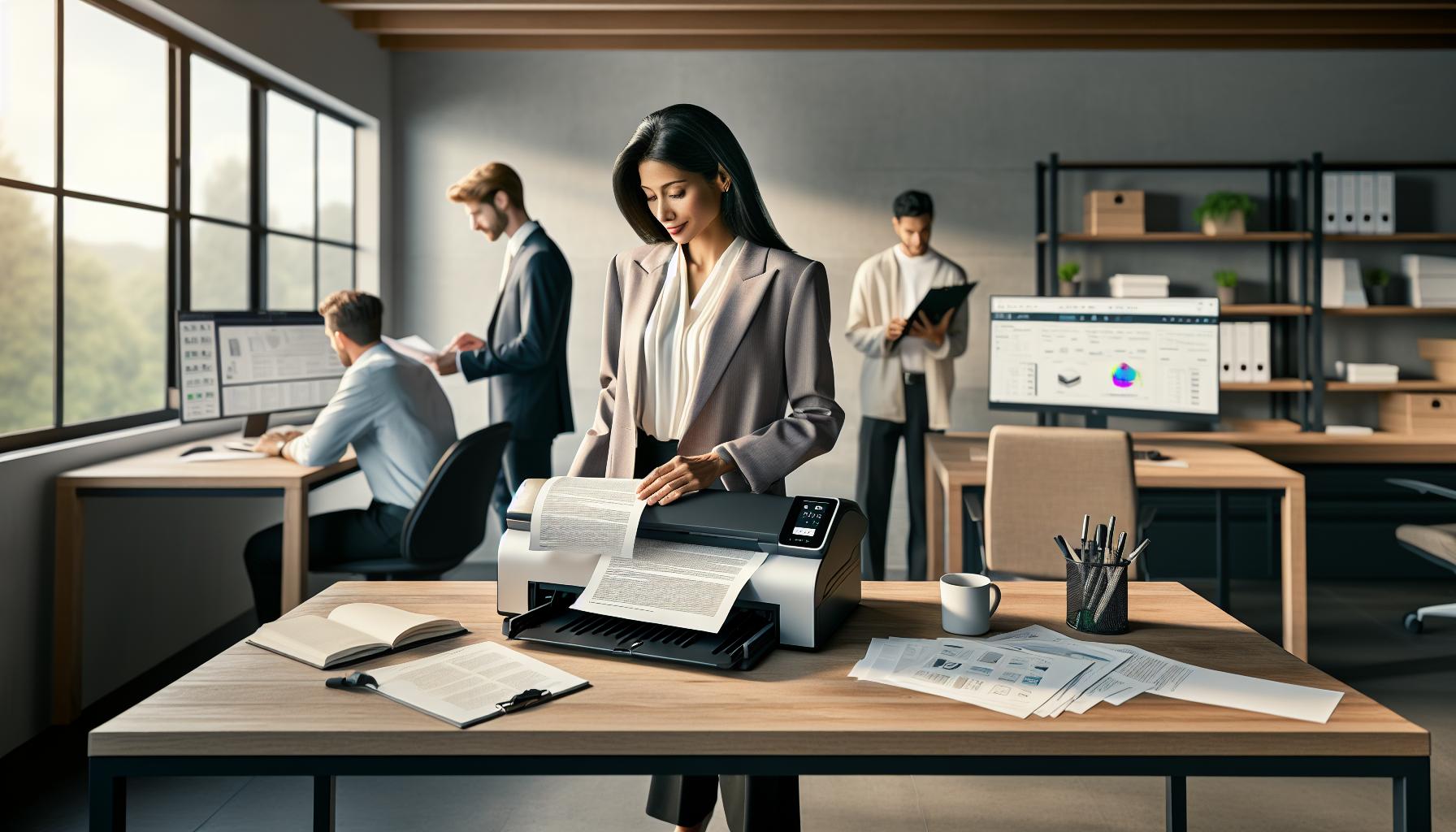
To achieve optimal quality when merging scanned documents into a single PDF, it’s crucial to start with clear and high-resolution scans. Did you know that the quality of your scans can significantly impact both the readability and the overall presentation of your final PDF? By focusing on a few simple practices during the scanning process, you can ensure that your documents maintain their integrity, making them look professional and polished.
First, consider using the right settings on your scanner. Aim to scan documents at a minimum resolution of 300 DPI (dots per inch) for text-heavy materials, which ensures crisp clarity. If you’re merging images or graphics, a higher resolution of 600 DPI may be advisable to capture the finer details. Adjusting other settings, like contrast and brightness, can also enhance the quality of your scans. Make sure to save the scanned documents in a PDF or high-quality image format (like PNG or JPEG) suitable for merging.
Next, organizing your scanned documents prior to merging is essential. Before uploading them to your PDF merger tool, double-check that each file is titled correctly and follows a logical sequence. This can save you time later when rearranging multiple pages. Many merging tools allow you to drag and drop files, making it easy to upload and arrange them in the desired order.
Finally, after merging your files, it’s vital to review the final PDF. Look for any pages that might appear blurry or have poor light exposure, and consider resaving or re-scanning those specific pages. Tools like Smallpdf or MergePDF offer options to enhance or optimize your merged PDF post-process. If the merging tool supports it, check if there are options for optimizing the final PDF for web or print, which may help compress file sizes while preserving quality.
By taking these proactive steps in your scanning and organizing practices, you can enjoy a smoother experience merging documents and end up with a professional-looking PDF that’s easy to read and share.
Understanding PDF Formats and Settings

Understanding the intricacies of PDF formats and settings is crucial when it comes to merging scanned documents into one cohesive file. PDFs, or Portable Document Format files, are designed to present documents in a manner independent of software, hardware, or operating systems. This means that regardless of how different systems may interpret files, PDFs maintain a consistent visual integrity, making them perfect for archiving and sharing scanned documents.
When preparing to merge your scanned documents online, it’s essential to explore the different formats and settings you can use to optimize your final product. First, understand the file types you’re working with. While PDF is the most common format used for merging scanned documents, other image formats like PNG or JPG are often involved, especially if you scanned pages as images. Before merging, save these images in high-quality formats; PNG is preferable for clarity and detail retention, while JPG can compress file sizes, albeit at a cost of some quality.
In terms of settings, resolution plays a pivotal role in ensuring your merged document looks professional. Typically, a resolution of 300 DPI (dots per inch) is recommended for text, while graphics and images benefit from a higher resolution, around 600 DPI. Such settings ensure that text remains readable and images appear sharp, enhancing the overall quality of the final PDF. Additionally, many PDF merging tools allow you to set options for file size and compatibility-consider whether your PDF needs to be optimized for fast web downloads or high-quality printouts, as this affects how the merger processes your files.
After merging, be aware of further settings that may be available in the PDF tools you are using. Many online platforms offer features to add encryption for security or to adjust settings like page layout, orientation, and more. Adjusting these settings not only tailors the PDF to suit your specific needs but also ensures you uphold any additional requirements such as accessibility standards or file size limits for email attachments. Always preview your final document before finishing the merge; this simple step can help you catch any potential issues with layout or readability, ensuring your document is ready to share with confidence.
Tips for Organizing and Sorting Your Documents

When it comes to merging scanned documents into a single PDF, organization is key to creating a cohesive and professional end product. A little upfront planning can make the process far smoother and reduce the stress associated with sorting through your documents. Begin by gathering all scanned files in one place. Create a dedicated folder on your computer where you can easily access these documents. This not only makes merging easier but also aids in tracking different versions and ensuring nothing gets lost along the way.
Once your documents are gathered, take a moment to review and rename them for clarity. Using a consistent naming convention, such as naming files according to their content (e.g., “Invoice_2023_March.pdf” or “Contract_ClientName.pdf”), can significantly improve your ability to locate and organize files later. Additionally, consider incorporating dates into the file names for chronological sorting; it’s a simple method that adds an extra layer of organization. If you have multiple drafts or versions of documents, number them sequentially to keep track of the most recent changes.
Furthermore, while reviewing your scanned documents, think about the order in which you want them to appear in your final merged PDF. Organizing documents logically ensures that the final product flows well, making it easy for readers to navigate. Use categories, such as invoices followed by contracts or reports, to create logical groupings. For example, if you’re merging financial documents, you might want to start with 2023 invoices, followed by payment records, and conclude with annual reports.
To finalize the process, consider creating a checklist of the documents you intend to merge. This can be as simple as a notepad listing each file name, ensuring you include everything before starting the merging process. You can even mark off documents as they are added to the final PDF. This approach keeps your workflow organized and helps prevent any last-minute surprises, such as missing crucial documents. With these tips, you’ll streamline the organization and sorting of your documents, making the merging process far more efficient and stress-free.
Common Issues When Merging PDFs and Solutions
Merging scanned documents into a single PDF can sometimes feel like navigating a maze, especially when unexpected issues arise. Understanding these common challenges and their solutions can make your merging process smoother and more efficient. One of the most frequently encountered problems is file size limitations. Many online PDF merger tools impose restrictions on file sizes, which can disrupt your workflow if you’re dealing with high-resolution scans. If you run into this issue, consider compressing your scanned documents before uploading them. There are numerous online tools available that can reduce image resolution and size without significantly affecting clarity.
Another common hurdle is the incompatibility of file formats. Sometimes, scanned documents may be saved in various formats (like JPEG, TIFF, or different PDF variations), and not all PDF merger tools support every type. Always check if your chosen tool accommodates the formats of your files. A reliable workaround is converting your documents into a universal format like PDF before merging. For added convenience, many PDF converter tools can also perform this step for you, allowing for seamless transitions between file types in one go.
In addition to technical issues, users might also experience difficulties with the order of documents in the final PDF. It’s not uncommon to find that the merged document doesn’t reflect the intended sequence. A helpful approach is to rename files with numerical prefixes (e.g., “01_Invoice.pdf,” “02_Contract.pdf”) to maintain the desired order during the merging process. If your tool allows for drag-and-drop file uploads, it can also help to reorder your documents manually before finalizing the merge.
Lastly, security concerns are paramount, especially when working with sensitive information in scanned documents. Many users worry about the safety of their files when utilizing online tools, which can lead to hesitation in uploading sensitive materials. To alleviate these concerns, choose a PDF merger service that offers encryption or ensures files are deleted from their servers after processing. Doing your research on user privacy policies before proceeding can help you feel more secure about your choice in tools. By being aware of these issues and knowing how to address them, you’ll approach the merging process with confidence, equipped to handle any setbacks with ease.
Enhancing Security for Your Merged PDF Files
When handling sensitive documents, security is a top concern. Merging scanned documents into a single PDF online can expose your files to risks if not done carefully. To ensure the protection of your information, it’s essential to choose the right tools and apply specific security measures that will safeguard your data throughout the merging process.
Firstly, always opt for online PDF merger tools that prioritize encryption. Look for tools that use industry-standard encryption protocols such as AES-256, which ensures that your files are scrambled and protected during upload and processing. Many reputable services will state this feature prominently, giving you peace of mind that your sensitive information remains confidential. Additionally, verify that the service provider has a clear privacy policy detailing how they handle your data-especially whether they delete your files after processing. This can significantly reduce the risk of unauthorized access to your documents.
- Enable Password Protection: After merging your PDF, consider adding password protection to the final document. This feature allows you to restrict access to authorized users only, ensuring that even if someone gains access to your merged PDF, they cannot view its contents without the password.
- Use Secure Connections: When uploading files, make sure the website employs HTTPS rather than HTTP. The presence of “https” in the URL indicates that the data being transmitted is secure, preventing interception by malicious entities.
- Review User Feedback: Before selecting an online PDF merging tool, take time to read user reviews and experiences. Look for feedback concerning security features and data protection, which can guide you towards trustworthy services.
Finally, consider utilizing desktop PDF merging software for especially sensitive documents. While online tools are convenient, having a local application limits exposure to the internet, thereby providing an additional layer of security. Some desktop applications allow you to work offline, ensuring that your files never pass through potentially insecure online servers. By following these practices, you can confidently merge your scanned documents into a single PDF while minimizing security risks and protecting your important information.
Exporting and Sharing Your Final PDF Document
When the time comes to export and share your newly merged PDF document, taking the right steps can make all the difference in ensuring your file reaches its intended audience smoothly and securely. Whether you’re sending important legal documents, school reports, or personal records, understanding the export process-and what comes next-can alleviate much of the stress often associated with handling sensitive files.
After merging your scanned documents, you’ll typically have the option to download the final PDF directly. Before hitting that download button, double-check the format settings if the tool offers customization options. Ensure that your merging tool has enabled features like quality retention and optimized compression, balancing file size with document clarity. A final review of the file can also help catch any last-minute errors or formatting issues that may need to be addressed before sharing.
Securely Sharing Your PDF
Once your file is ready, you may look for ways to share it securely. Here are some practical steps to take:
- Use a Trusted File Transfer Service: Instead of sending your PDF as a typical email attachment, consider using secure file sharing services like Dropbox, Google Drive, or WeTransfer. Many offer password protection and expiration dates for links, adding an extra layer of security.
- Encrypt the PDF: Before sharing, apply encryption to the PDF file. Many PDF tools allow you to set passwords that must be entered to access the document. This is particularly important for sensitive information. Send the password through a separate channel, such as a text message or a phone call, to enhance security.
- Check File Permissions: Some PDF tools allow you to adjust permissions on your document. You can restrict actions like printing or editing, ensuring that recipients can only access the content as intended.
Tips for Smooth Delivery
Ensuring that your document arrives without issues is equally as important as securing it. Here are a few tips:
- Verify Recipient Details: Before sending, double-check the email address or contact information of your recipient. A simple typographical error can lead to sending sensitive information to the wrong person.
- Include Clear Instructions: If your PDF requires specific actions (such as filling out forms), provide clear instructions along with the document. This reduces the likelihood of confusion or miscommunication.
- Ask for Confirmation: If the document is particularly important, request that the recipient confirms receipt. This not only ensures they’re aware of the file but also provides peace of mind that it hasn’t been misplaced.
By following these practical steps for exporting and sharing your merged PDF, you can navigate the complexities of document management with confidence. With the right strategies in place, you’ll not only protect your sensitive information but also simplify the sharing process, allowing you to focus on what truly matters.
Best Practices for Scanned Document Preparation
Preparing scanned documents properly can significantly enhance the quality and efficiency of merging them into a single PDF. One common misconception is that any scan will do, but the truth is that well-prepared scans can make a world of difference in the final document’s readability and professionalism. Start with a scanner that can handle high-resolution imaging; ideally, you want to scan at least at 300 DPI (dots per inch) for best results, which ensures that text is clear and legible.
Organizing Your Scans
Before you even begin the merging process, organize your scanned documents logically. This might involve renaming files in a way that reflects the order in which you want them to appear in the final PDF. For example, if you are scanning a series of invoices, you might rename them as Invoice_01, Invoice_02, and so on. Keeping everything sequential not only makes it easier during the merging stage but also helps when you need to locate specific documents later.
Consistent Quality and Format
Ensure that all scans maintain a consistent quality and format. Use the same settings for each scan, such as resolution, color depth, and file format (PDF, JPEG, etc.). Uniformity helps in avoiding formatting issues later when merging. If your scanned documents include color and black-and-white items, it’s often best to keep the color scans to a minimum, as mixed files can increase the overall file size without significant benefit.
Pre-Merging Checks
Once your scanned documents are organized and consistently formatted, double-check for clarity and completeness. Look for any pages that may have been scanned incorrectly or that may have scanning errors, like shadows, lines, or faded areas. If necessary, rescan poor-quality pages. It’s also helpful to view each scan on your computer or device to ensure everything looks correct before proceeding to merge the files.
By following these practices, you can not only streamline the merging process but also enhance the overall quality of your final document. With well-prepared scanned documents, you’ll be able to present your information more effectively, making communication clearer and more professional. Whether you are dealing with personal records, official documents, or creative projects, taking the time to prep your scans pays off immensely.
Comparing Free and Paid PDF Merger Services
When it comes to merging scanned documents into a single PDF, choosing the right tool is crucial. The landscape of PDF merger services includes both free and paid options, each offering distinct features that cater to different user needs. Understanding the differences can help you select a tool that not only meets your immediate requirements but also enhances your productivity and document management experience.
Free PDF merger tools often appeal to users looking for quick and straightforward solutions without any financial commitments. These services typically provide essential merging functions, allowing users to combine multiple files efficiently. However, they may come with limitations such as file size restrictions, limited output file quality, or a lack of advanced features like OCR (optical character recognition) for scanned documents. If you’re working with standard documents and have low-volume merging needs, a free tool may suffice. Some popular options you might consider include online platforms that allow drag-and-drop functionality and immediate merging without the need for installation.
On the other hand, paid PDF merger services often present a more robust solution for users with extensive requirements. These tools typically offer enhanced features, including higher file size limits, superior output quality, file compression options, and even additional functionalities for organizing and securing your PDFs. For instance, you may find options to add password protection to your merged documents or to preserve hyperlinks and bookmarks. Furthermore, many paid services also ensure customer support, which can be invaluable when troubleshooting issues or seeking guidance on advanced features.
Using a comparison chart can help clarify the differences between free and paid options. Below is a simplified version:
| Feature | Free PDF Merger | Paid PDF Merger |
|---|---|---|
| File Size Limit | Low | High |
| Output Quality | Standard | High |
| Security Features | None | Password Protection |
| Customer Support | Limited | Comprehensive |
| OCR Capabilities | Not available | Available |
Ultimately, the choice between free and paid PDF merger services should depend on your specific needs and usage frequency. If you’re merging documents occasionally for personal use, a free service may fit your bill. However, for businesses or frequent users needing reliability and advanced features, investing in a paid tool can save time and improve efficiencies in handling scanned documents. Regardless of the choice, ensuring that your selected tool aligns with your merging requirements will optimize your workflow and enhance your document management capabilities.
Exploring Additional Features of PDF Tools
Utilizing advanced features in PDF tools can vastly enhance your experience when merging scanned documents into one PDF file. Beyond the basic merging functions, many tools offer innovative capabilities that simplify workflows and improve the quality and security of your documents. For example, features such as Optical Character Recognition (OCR) allow scanned images to be converted into editable text, making it easier to integrate, edit, or search content within your merged PDFs. This capability is particularly useful for handling documents where text extraction is necessary, such as invoices or forms that are typically scanned rather than saved as standard PDFs.
Moreover, user-friendly interfaces in some PDF tools enable intuitive drag-and-drop functionality, allowing you to effortlessly organize and arrange your documents before merging. This saves time and frustration compared to tools that require tedious manual sorting. Many PDF applications also provide options for adjusting the layout and orientation of your pages, enabling you to customize the output as needed. You might find options to rotate pages, delete unnecessary ones, or even insert blank pages for notes or additional information.
Security Features
In an age where data security is becoming increasingly paramount, many advanced PDF tools offer robust security options. Features like password protection, document encryption, and watermarking can safeguard your sensitive information. Adding a password to your merged PDF ensures that only authorized individuals can access the contents, maintaining confidentiality. Watermarking your PDFs can also deter unauthorized use or reproduction, providing additional peace of mind.
Integration with Other Tools
Another significant advantage of modern PDF tools is their ability to integrate with various cloud storage services. This means you can merge your documents and then save or share them directly to platforms such as Google Drive, Dropbox, or OneDrive without needing to download them to your device first. This seamless integration not only streamlines the workflow but also minimizes the risk of data loss, as your files are automatically backed up in the cloud.
In summary, exploring and leveraging these additional features of PDF tools can transform the way you merge and manage your scanned documents. By taking advantage of functionalities like OCR, custom layouts, extensive security measures, and cloud integrations, you can enhance efficiency and ensure the quality and security of your final PDF outputs. As you navigate these tools, remember that your choice provides not just a merging capability, but a comprehensive solution for all your document management needs.
User Reviews: What to Look for in a Tool
When choosing an online tool for merging scanned documents into one PDF, user reviews are an invaluable resource that can guide you to make informed decisions. Insights from real users shed light on various aspects of the merging process, such as ease of use, speed, reliability, and customer support, ultimately helping you select a tool that aligns with your specific needs.
It’s essential to look for reviews that highlight user experience with features such as drag-and-drop functionality, which can significantly simplify the document merging process. For example, positive feedback often points out how seamlessly users could rearrange files or the ability to handle large files without significant slowdowns. Moreover, consider reviews that discuss the quality of the output, as some tools may compromise image fidelity after merging, leading to frustration, especially when dealing with scanned documents.
What Users Appreciate
Many users also express their gratitude for tools that incorporate Optical Character Recognition (OCR), which allows scanned text to become editable, making it easier to integrate information from different sources. If you find reviews highlighting this feature, it indicates that the tool may be user-friendly and efficient for handling document edits post-merging. Additionally, support for diverse file formats is a plus; users often appreciate when tools can convert various formats into PDFs or vice versa.
Common Concerns
While user reviews provide a wealth of information, they may also reveal common issues. Frequent complaints may include limitations on file sizes for free use, difficulties in navigating the interface, or lacking prompt customer service when encountering technical problems. Reviews that cite these issues can help set realistic expectations and encourage you to explore alternatives if needed.
In summary, when reading reviews, prioritize those that tackle specific functionalities you find essential, such as security features (like password protection and encryption) and integration capabilities with cloud services. By leveraging the insights gained from user experiences, you can confidently select a merging tool that not only meets your immediate needs but provides long-term value for your document management processes.
Frequently asked questions
Q: How can I easily merge multiple scanned documents into one PDF online?
A: To merge scanned documents online, use an online PDF merger tool. Upload your scanned files, arrange them in the desired order, and select the merge option to create a single PDF. Tools like Smallpdf and others offer this feature with step-by-step instructions [1[1].
Q: What file formats can I merge into a PDF?
A: Most online PDF merger tools accept various formats, including JPG, PNG, and TIFF for scanned images. Ensure your files are in a compatible format before uploading. Refer to specific tool guidelines for supported formats [1[1].
Q: Is it safe to merge scanned documents online?
A: Yes, reputable online PDF mergers use encryption to protect your files during the merging process. Always choose a trusted service that prioritizes user privacy and data security [1[1].
Q: What should I do if my scanned documents are not clear after merging?
A: If your merged PDF appears unclear, optimize each scanned document before merging. Adjust brightness and contrast when scanning and ensure high resolution. You can also use PDF editing tools to enhance quality after merging [1[1].
Q: Can I merge scanned documents on my mobile device?
A: Yes, many online PDF merger tools are mobile-friendly, allowing you to merge scanned documents using your smartphone or tablet. Look for tools with apps or mobile-optimized websites [1[1].
Q: How long does it take to merge scanned documents online?
A: Merging scanned documents online typically takes a few seconds to a few minutes, depending on your internet speed and the size of the files. Most tools provide a progress indicator so you know when the process is complete [2[2].
Q: Are there any limits on the number of documents I can merge?
A: Many free online PDF merger tools have limits on the number of files or their size. For larger projects, consider using paid versions which offer greater flexibility and additional features [1[1].
Q: How can I organize my scanned documents before merging them?
A: Organize scanned documents by renaming files in a logical order and using folders to categorize them. This makes it easier to upload and arrange them in the correct sequence during the merging process [1[1].
Concluding Remarks
Congratulations! You’ve now learned how to seamlessly merge scanned documents into a single PDF online, streamlining your workflow and enhancing your organization. By utilizing the right tools, you can efficiently handle your paperwork, ensuring it’s accessible and manageable. Don’t wait-start merging your documents today and experience the difference this can make in your digital file management.
For more tips on document management, check out our guides on optimizing PDF files and PDF Converter, where you can transform documents effortlessly. Join our community by signing up for our newsletter to stay updated on the latest resources and insights. Your smooth document management journey starts now-let’s get those files organized!